Axiom is the simplest way to get measurements into a computer or tablet, and this guide will get you up and running in no time
Axiom Features
Here's a quick overview of the physical features of your Axiom
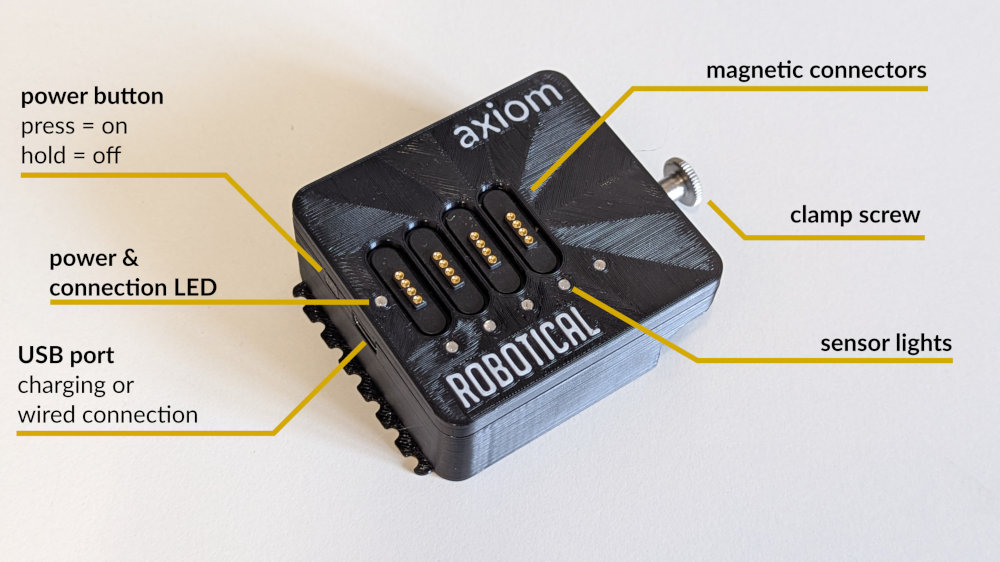
Inside the unit itself there is also
- a 2000 mAh battery and charger
- an accelerometer and gyroscope sensor for sensing motion
- bluetooth and USB connectivity
Turning Axiom on and off
To turn Axiom on, press the power button
To turn Axiom off, hold down the power button until the power LED stops blinking
Axiom is always turned on when connected by USB
| Power & connection LED | Status |
|---|---|
| Off | Off |
| Flashing Green | On battery power |
| Solid Green | On USB power |
| Flashing Blue | On battery power, bluetooth connected |
| Amber | Low battery |
When on battery, Axiom will turn itself off after a period of inactivity to avoid running down the battery
Axiom will turn off when unplugged from USB. If you'd like it to stay turned on, hold down the power button while you unplug it
Using Axiom
To get started with Axiom, go to the web app at axiom.robotical.app
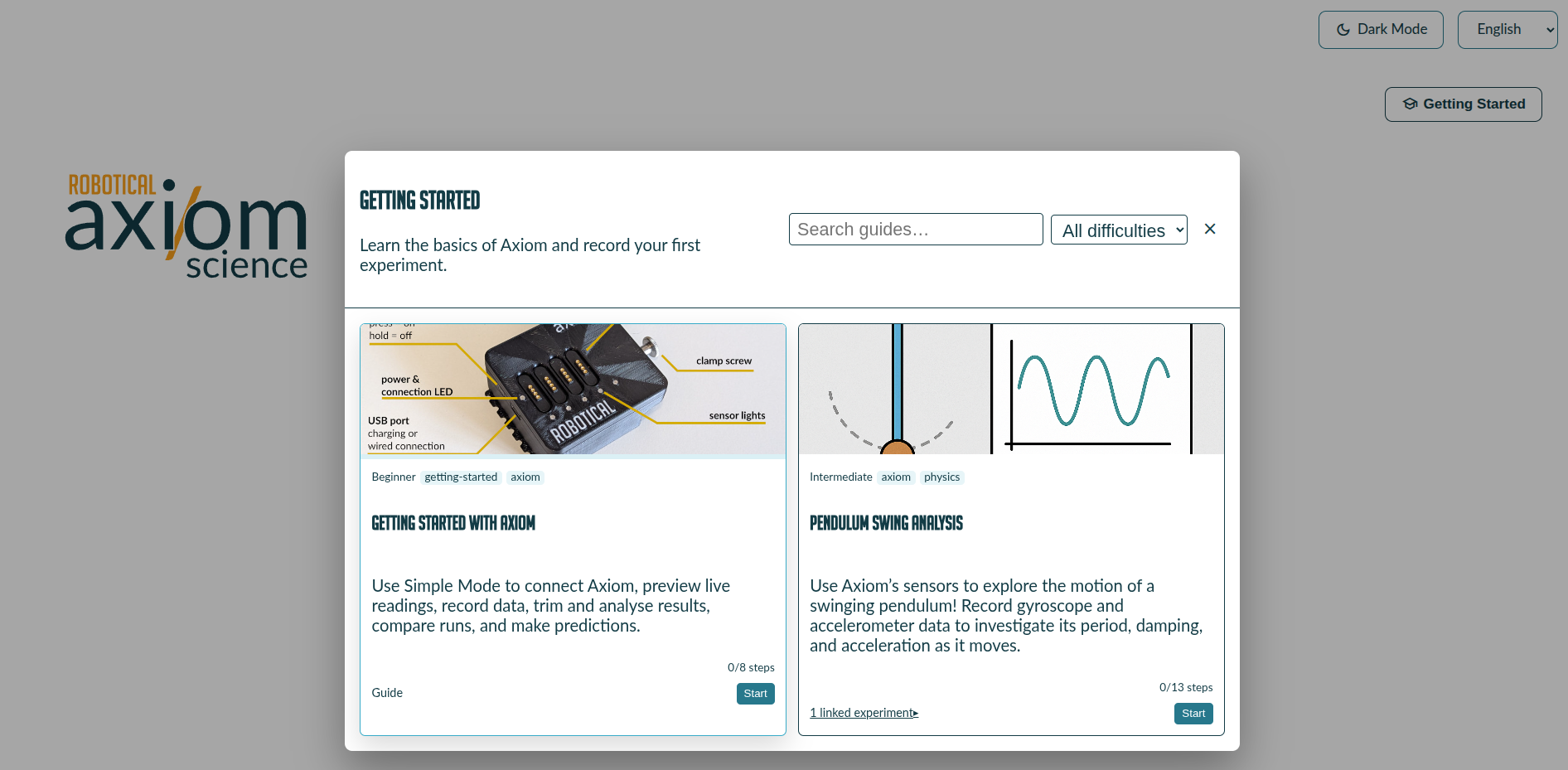
For a guided introduction to Axiom, press the Getting Started button and start the Getting Started with Axiom tutorial
Supported Devices
The Axiom software will run on many devices, including almost any recent device with bluetooth or USB connectivity
On computers, chromebooks and Android tablets, no software installation is necessary. For iPads you can download the Robotical Axiom app
| Device | App Version | Requirements |
|---|---|---|
| Windows PC / Laptop | web app at axiom.robotical.app | Chrome based web browser. Bluetooth or USB |
| Chromebook | web app at axiom.robotical.app | Chrome web browser. Bluetooth or USB |
| Android tablet | web app at axiom.robotical.app | Chrome web browser. Bluetooth or USB |
| iPad | Robotical Axiom iOS app | |
| Linux computer | web app at axiom.robotical.app | Chromium browser with webBLE enabled, or USB |
| Mac computer | web app at axiom.robotical.app | USB only |
The magnetic connector system
Axiom sensor modules connect using magnetic cables. These will simply snap into place and you can't connect them wrong!
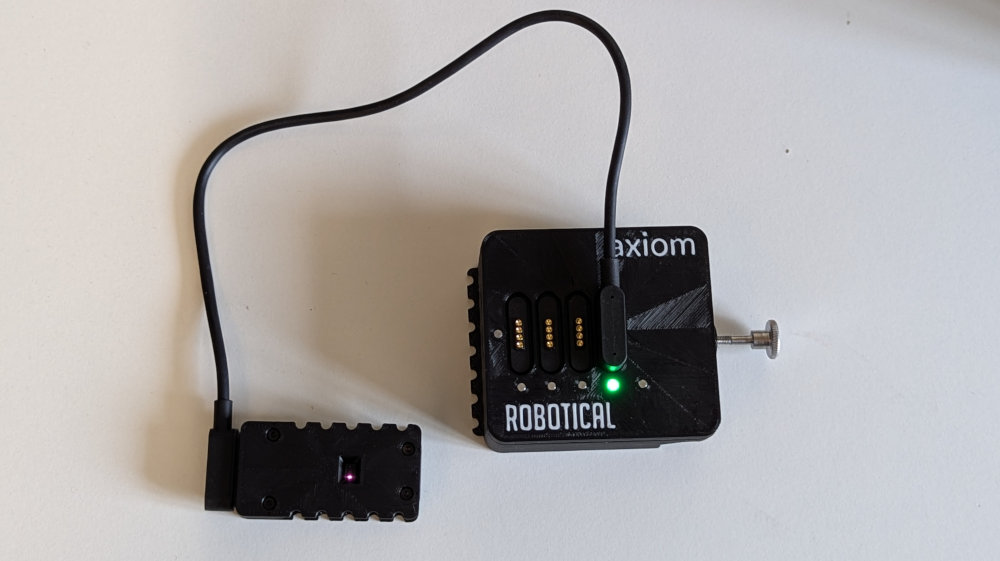
Once a sensor is connected it will be automatically identified and configured, and will pop up in the live view of the app and start producing data - you don't need to click a single button!
Updating Axiom
You can easily update the firmware on your Axiom over USB using our web updater at updates.robotical.io/axiom/web-updater/
A normal firmware update replaces the files stored on Axiom, including any custom device library. Export your library before updating, then install it again afterwards. See Backing up your device library.
Adding your own sensors
Developers can teach Axiom to recognise new I²C sensors, and customise or disable its built-in ones, with the Axiom Device Library.