If you have recently had micro:bit paired over USB to MakeCode, you will need to unpair from MakeCode. Instructions about how to unpair micro:bit from MakeCode are at the bottom of this page:How to reset your micro:bit.
If this is your first time using this micro:bit with Blocks Jr you will need to install the Blocks Jr for micro:bit software. To do this, follow steps 1 to 6 in the “Setting up your micro:bit” section below. If your micro:bit already has the correct software installed, skip to the “Connecting your micro:bit to the Robotical App” section.
Setting up your micro:bit
1. Go to Blocks Jr in the Robotical Web App.
2. Start a new project, or click into an existing project. Connect your micro:bit to your computer or Chromebook, not a tablet, using a micro-USB cable.
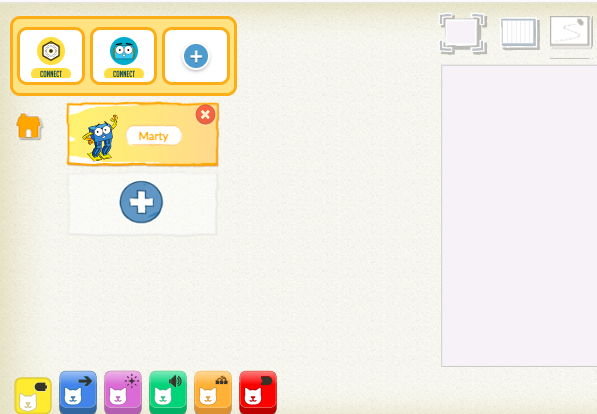
3. Click the “Plus” button in the top left corner of the screen, and select the micro:bit extension from the pop-up. A second pop-up will appear with the options Install Software and Connect.
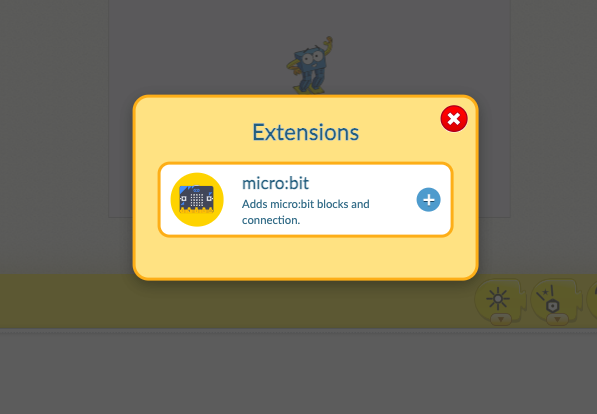
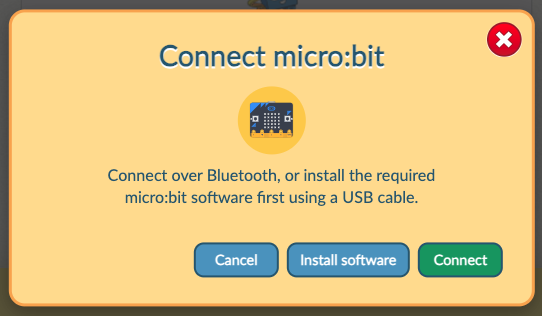
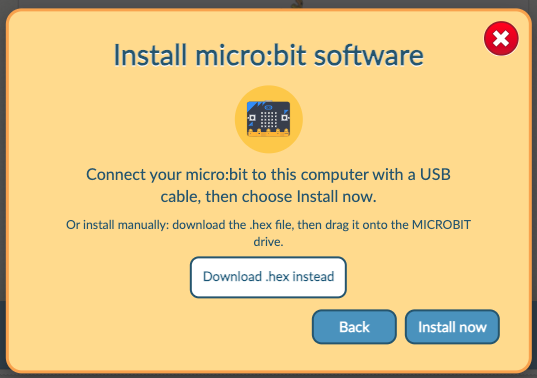
4. Press “Install Software”. We recommend downloading the .hex file and either saving it to the micro:bit or dragging the downloaded file on to the micro:bit drive.
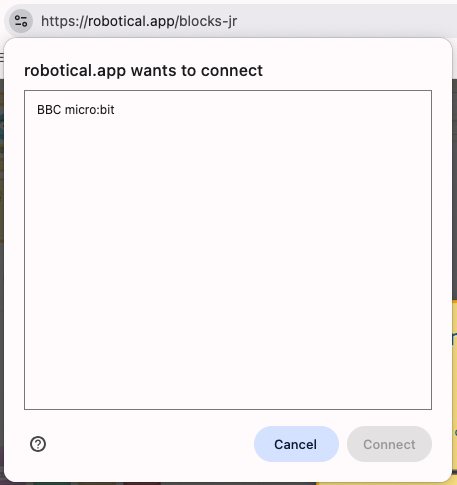
5. A pop-up window will appear asking you to connect your computer to the micro:bit. Select your micro:bit from the list and click Connect.
6. The LED beside the USB port will flash orange while the software is being installed on your micro:bit. Once the software is successfully installed onto the micro:bit, the micro:bit will scroll a five-letter name on the device.
Connecting your micro:bit
1. Open the Robotical App on your iOS or Android device and select Blocks Jr.
2. Start a new project or open an existing one.
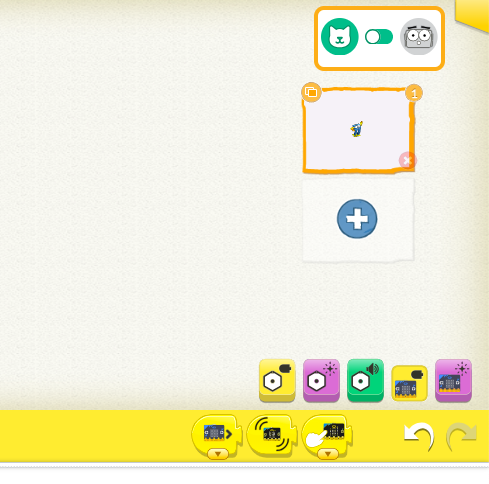
3. You can use micro:bit with Blocks Jr to control a physical device, such as Marty or Cog, or to control a sprite on screen. Use the toggle in the top right corner of the screen to switch between these options.
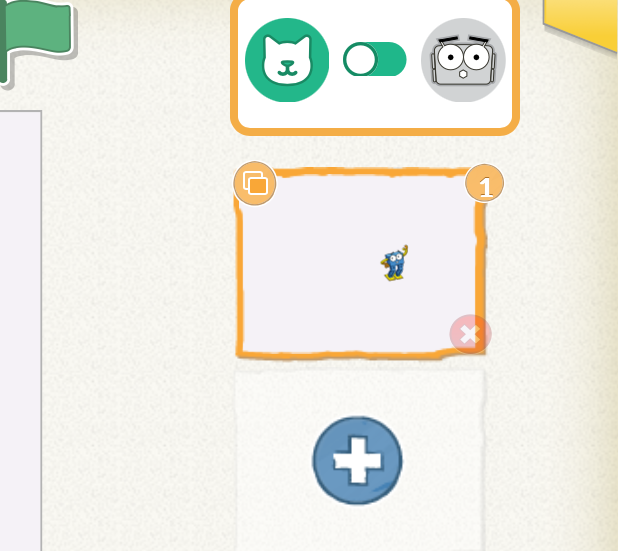
4. To load the micro:bit extension, press the “Plus” button in the top left corner of the screen. A pop-up window will appear. Press the “Plus” button beside micro:bit.
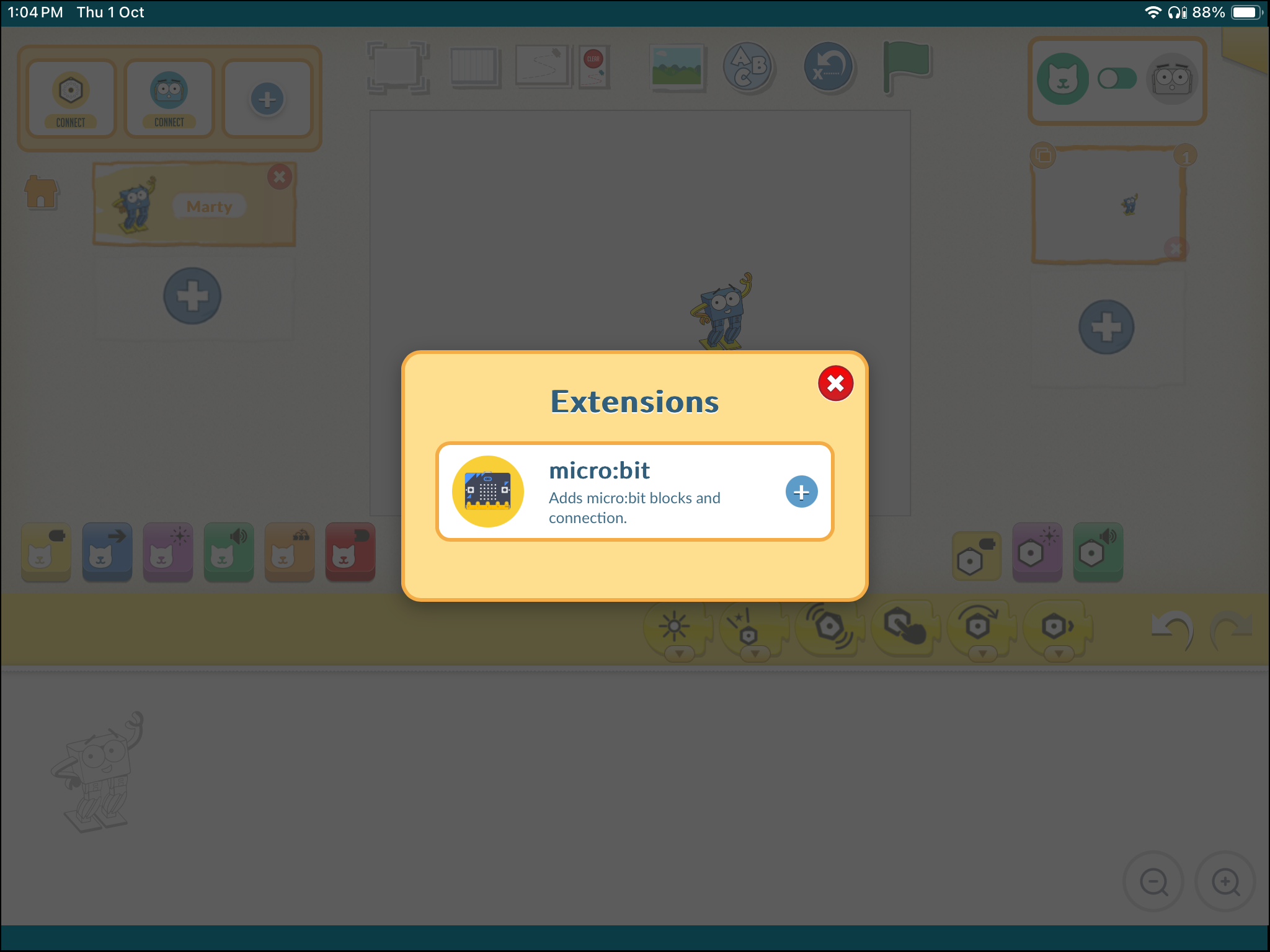
5. Your micro:bit will appear in the device list in the top left corner of the screen. Press “Connect” underneath.
6. Another pop-up window will appear. Select the micro:bit you want to connect to.
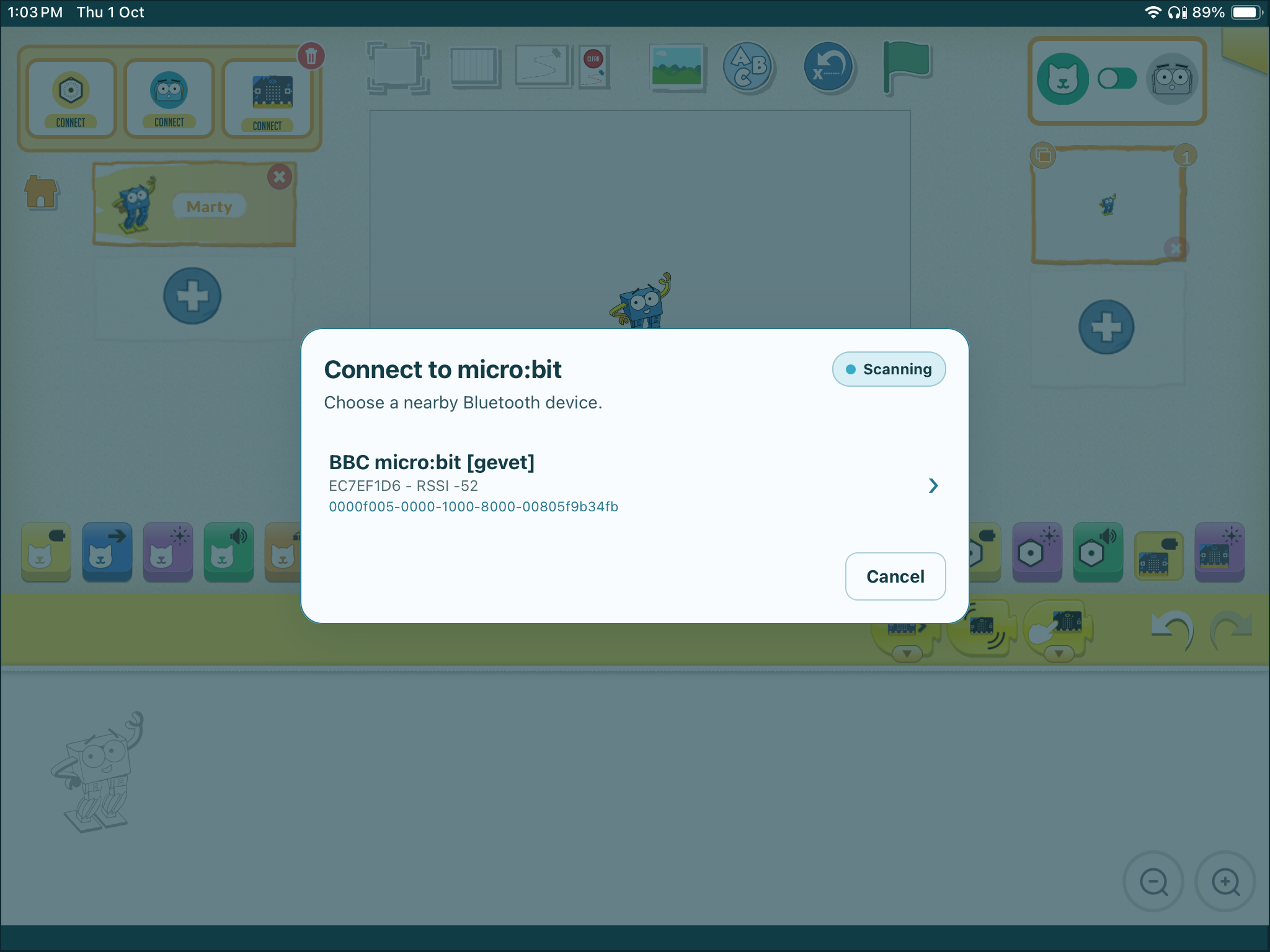
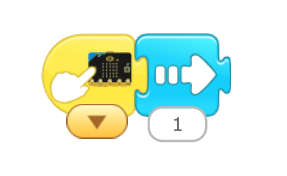
7. Test your connection. Drag the “On Button Press” block from the yellow micro:bit blocks on the right of the screen into the coding area. Then add a movement block from the blue blocks on the left of the screen. When you press the “A” button on your micro:bit, your sprite should move across the screen according to the movement block you've chosen.