Firmware updates add features to Marty V2 and improve how the robot works. Use the Marty Web Updater to install them over USB from a computer.
Firmware updates over Bluetooth (BLE) are no longer supported. You need a USB connection to a computer to update Marty.
In the current Robotical app, open Robot settings using the robot-and-gear icon at the bottom left to see Marty's Current Version. The Update Your Marty button opens the web updater; it does not install an update over Bluetooth. If you are using an iPad or phone, open the updater on a computer instead.
Updating over USB
Use Google Chrome on a laptop, desktop or Chromebook with an internet connection. Your USB cable must support data transfer, not just charging. Disconnect any other app or browser tab using Marty's USB serial connection before starting.
1. Connect Marty and open the updater
Connect Marty to your computer using the USB cable, then open the Marty Web Updater.

2. Start the update
Click Start Update. In the browser's serial-port chooser, select Marty's USB device, then click Connect. Its name may contain CP2102N, USB Serial or CH340, depending on the hardware and driver.
If no device appears, check that the USB cable supports data and see the Driver Installation section below.
3. Let all update stages finish
Keep the USB cable connected and the updater page open while it updates Marty, including any servo and sensor updates. Marty may restart during the process.
If the updater reports that the main robot update is complete but the servo and sensor update still needs to run, choose Finish Update (or Finish update in the message). If a recovery message offers Update Servos and Sensors, use that button to finish the remaining updates. Select Marty's serial port again if prompted.
If colour-sensor calibration is requested, follow the on-screen instructions before continuing.
Wait until the updater shows Firmware update successful at 100%. You can then reconnect to Marty in the Robotical app and check the current version in Robot settings.
Driver Installation
If you don't see anything you may need to download an extra driver for your Marty.
For Martys made since 2023
You'll need the CH340 drivers - Sparkfun has a great guide on how to install them here
For Martys made before 2023
If your Marty V2 is a little older, you may need the CP210x driver from here . You will need to download the CP210x Universal Windows Driver. Once the file has downloaded you will need to
1. Unzip/ Extract all the folder
2. Right click on the silabser.inf file and select Install
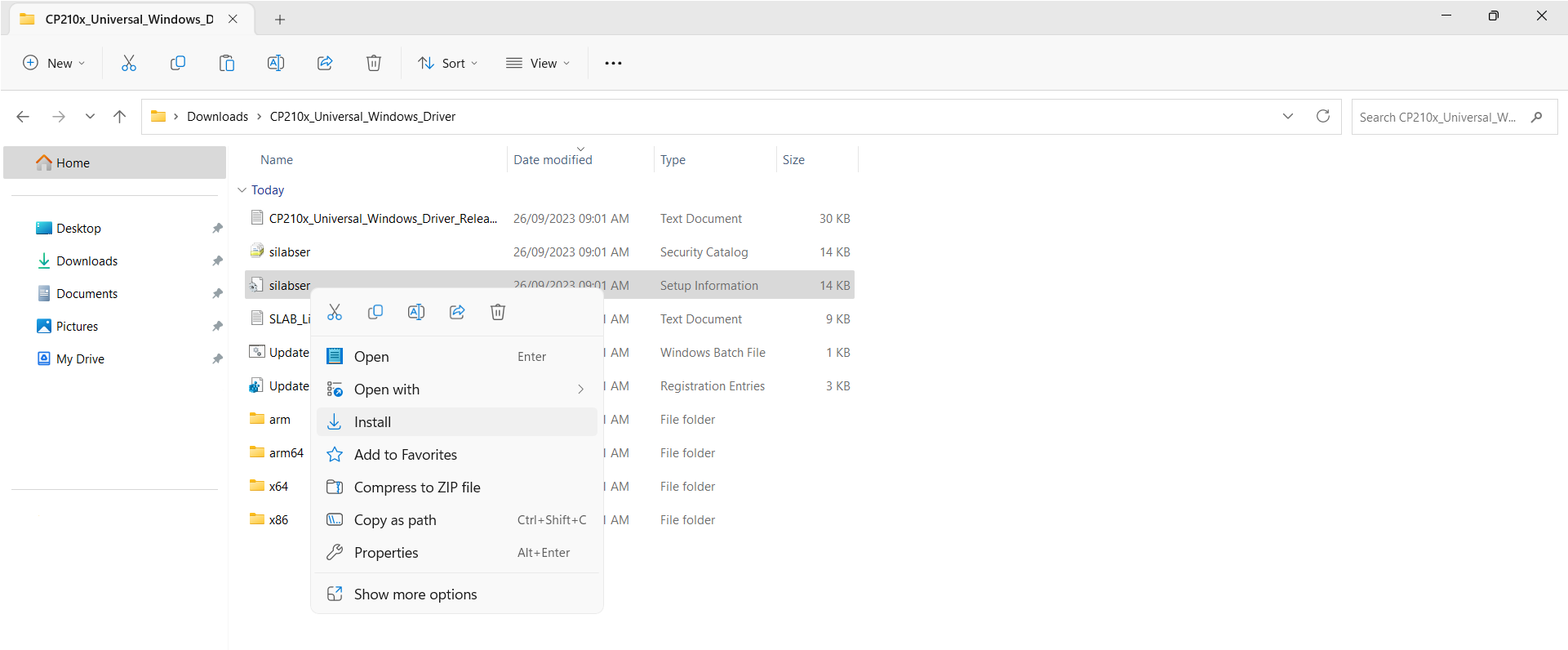
3. Follow the instructions
Once this driver has been download you can plug your Marty in and you should be able to see CP2102N USB to UART Bridge Controller when you press Start Update
If the update fails
- If the updater cannot open a connection, check the USB cable and selected port, and close or disconnect any other app using the same serial port. Reconnect the USB cable and try again.
- Follow the recovery action shown by the updater. If the main firmware update has already completed, finish the servo and sensor updates using the button provided.
- If the problem continues, contact support@robotical.io with the error message shown by the updater.