Blocks helps you take the next step from graphical blocks to Python. You can see the Python behind a block or stack, edit and run a Python program, or write a Python block alongside your graphical code.
This feature is currently Beta. Start with a short program, check the generated code, and use the Output panel to help spot mistakes.
Before you start
- To make a real Marty move, switch on your Marty V2 and connect it using the app's usual Bluetooth connection. See the Marty app guide if you need help connecting.
- Keep Marty on a clear, stable surface with room to move. Keep the app open and Marty connected while your program runs.
You can preview code and convert supported Python to blocks without a connected robot. Running commands that control Marty requires a connection.
Choose how you want to use Python
| What would you like to do? | Where to go |
|---|---|
| See the Python for one graphical block | Right-click the block and choose Show Python for this block. |
| See the Python for a connected stack | Right-click a block and choose Show Python for this stack. |
| Edit and run a Python program | Click the Marty Python button above the coding area. |
| Write Python within your block program | Right-click an empty area and choose Add Python block. |
| Turn supported Python into graphical blocks | Right-click a Python block and choose Convert Python to blocks. |
Preview the Python for a block or stack
- Build a short stack, such as Get ready! followed by Circle dance.
- Right-click the graphical block you want to inspect.
- Choose Show Python for this block for just that block, or Show Python for this stack for the connected stack.
- Use the copy icon in the preview to copy its Python code.
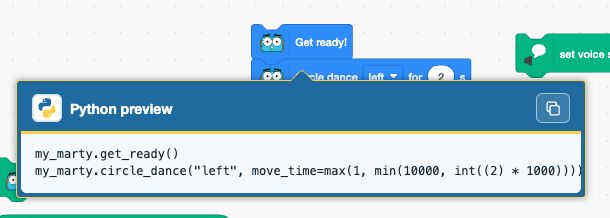
The preview lets you compare graphical instructions with their Python equivalents. Opening it does not replace your blocks or run the code. To edit the code, paste it into the Marty Python editor or a Python block.
For example, the Get ready! block becomes:
my_marty.get_ready()
Here, my_marty refers to the Marty you control, and get_ready() tells it what to do. Values inside parentheses customise a command, just as the number fields and menus customise a graphical block.
Edit and run a program with Marty Python
- Click Marty Python above the coding area. The editor opens with Python generated from your project.
- Click inside the editor to change the code. Python colours help you recognise commands, text, numbers and comments.
- Connect Marty, then click Run.
- Read the Output panel for printed messages, completion information or errors. Click Stop to stop a running program.
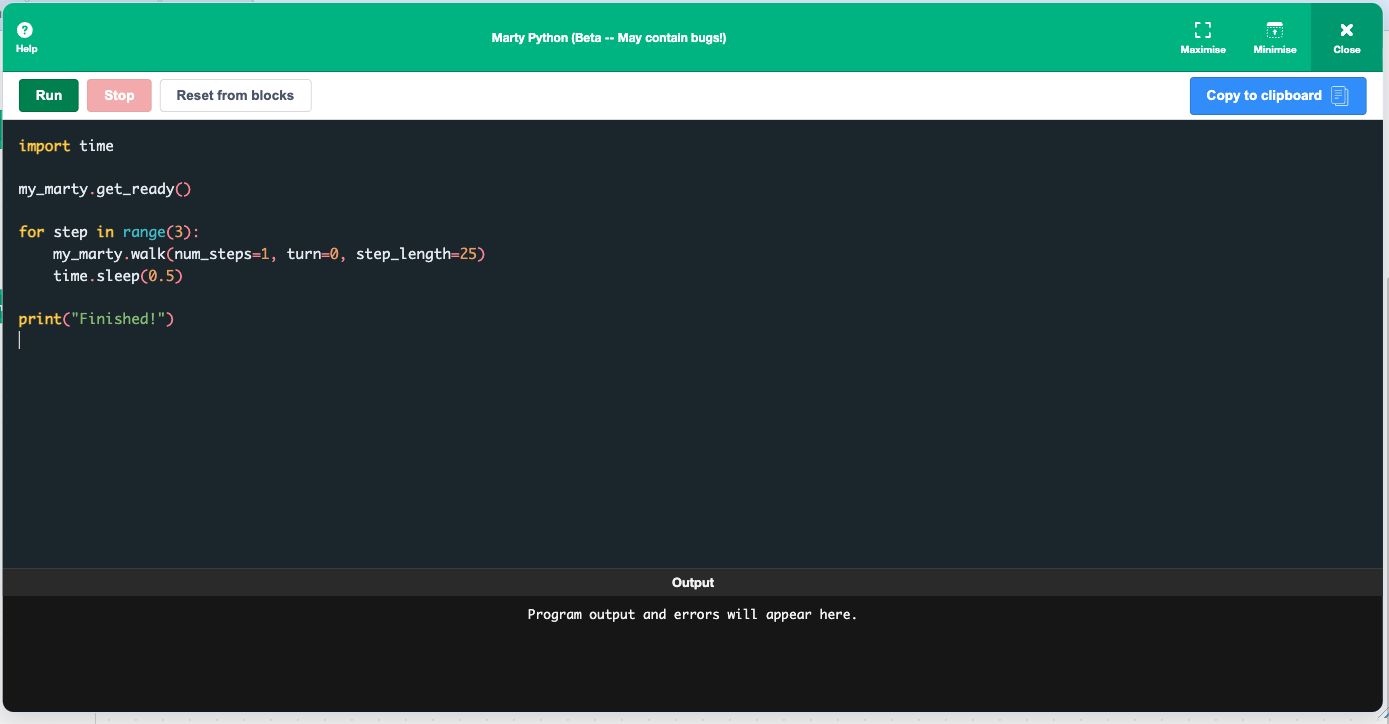
Try this short example in the editor. It gets Marty ready, then takes three forward steps with a pause between each one:
import time

my_marty.get_ready()

for step in range(3):
    my_marty.walk(num_steps=1, turn=0, step_length=25)
    time.sleep(0.5)

print("Finished!")
The indented lines belong to the loop. Use four spaces for each indentation level. time.sleep(0.5) waits for half a second, and print() writes a message in Output.
Reset from blocks regenerates the Python from your current project and replaces your Python edits. Editing Python in this window does not automatically change the graphical project. Use Copy to clipboard if you want to keep a copy of your edited code.
You can move the window by dragging its header and resize it using its edges or corners. Maximise gives you more space; Minimise tucks it away so you can see the blocks again.
Add a Python block to your project
- Right-click an empty part of the coding area and choose Add Python block.
- Click the code field inside the new block to open its editor.
- Type or paste your Python. Click outside the editor when you have finished.
- Snap the Python block into your graphical stack where you want those instructions to run.
A Python block runs the code written inside it when the project reaches that block. For example, you can put a graphical Get ready! block before a Python block containing a short movement routine. Use the green flag when your stack has a green-flag event, or click the stack to run it.
While the Python is running, the block shows a running indication. If the code fails, an error indication helps you find the problem. Check names, values and indentation before trying again.
Convert Python into graphical blocks
Start with commands copied from a block preview, or type a supported Marty command yourself. For example, enter these two lines into a Python block:
my_marty.get_ready()
my_marty.walk(num_steps=10, turn=0, step_length=25)
Right-click the Python block and choose Convert Python to blocks.
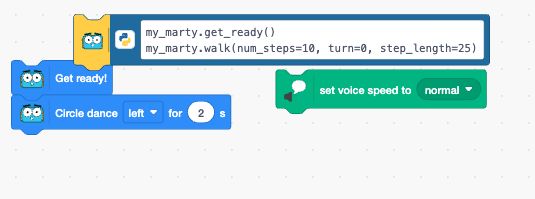
The example becomes a graphical stack containing Get ready! and Walk 10 steps forwards:
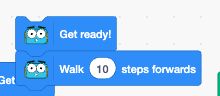
Conversion supports the Python patterns that Blocks can represent, including supported Marty commands and loops. It is not a converter for every possible Python program. If a line cannot be represented, the conversion reports the problem and keeps the Python block so you can edit it. Use Undo if you want to return to the Python block after a successful conversion.
How does Python work with Bluetooth?
Think of your device as the programmer and Bluetooth as the link to Marty. Blocks includes a Python interpreter that can read and run Python in your browser, so you do not need to install Python on your computer for this feature.
When your Python reaches a command such as my_marty.walk(…), the app sends the corresponding instruction over the Bluetooth connection you already established. Marty carries out the movement. Sensor information comes back through the same connection, so your Python can use it to decide what to do next.
Your Python code runs in the browser on your computer or tablet, where loops and decisions happen. Marty receives commands over Bluetooth and handles its movements and sensors. You do not need to select a Bluetooth port or set up a separate Python connection in this editor.
Keep the app open and the connection active throughout the run. This feature does not turn your program into a standalone program that will keep running after you close the browser or disconnect Marty.
Tips and troubleshooting
- Marty does not move: check that the intended Marty is connected, then try a single my_marty.get_ready() command. A code preview alone does not execute anything.
- An error appears: read the message in Output or on the Python block. Python names are case-sensitive: get_ready and Get_Ready are different names. Check quotation marks, brackets and indentation too.
- Waiting for a sensor: allow a small pause while checking repeatedly. Use time.sleep(0.05) in a polling loop instead of a loop containing only pass or continue. Use Python True and False for Boolean values, not the text “true” or “false”.
- The generated code contains “not implemented yet”: that part of the graphical project is not supported by the Python translation. The comment is not an executable replacement for the block.
- An import or library does not work: the in-app interpreter supports a selection of Python features and Marty commands. It is not a full desktop Python installation, and arbitrary third-party packages cannot simply be installed into it.
- Python cannot be converted to blocks: simplify the reported line and compare it with code from a graphical block preview. Code that can run in Python is not necessarily code that has an equivalent graphical block.
For more command examples, see the Marty Python function reference. The reference covers the wider MartyPy library; some commands or options may not be available in the in-app runner. For using a separate Python installation, see the Python setup guides.