Use the current Robotical app to find your Marty V2's Wi-Fi IP address. You need this address when connecting to Marty over Wi-Fi from Python or another network tool. You do not need a Wi-Fi IP address for a USB connection.
Marty must already have a Wi-Fi network configured. If you have not set this up, follow Connecting Marty to Wi-Fi first.
Using the Marty App
- Turn on Marty and open the Robotical web app or the Robotical phone/tablet app.
- Connect to Marty using Bluetooth. See the app guide if you need help connecting.
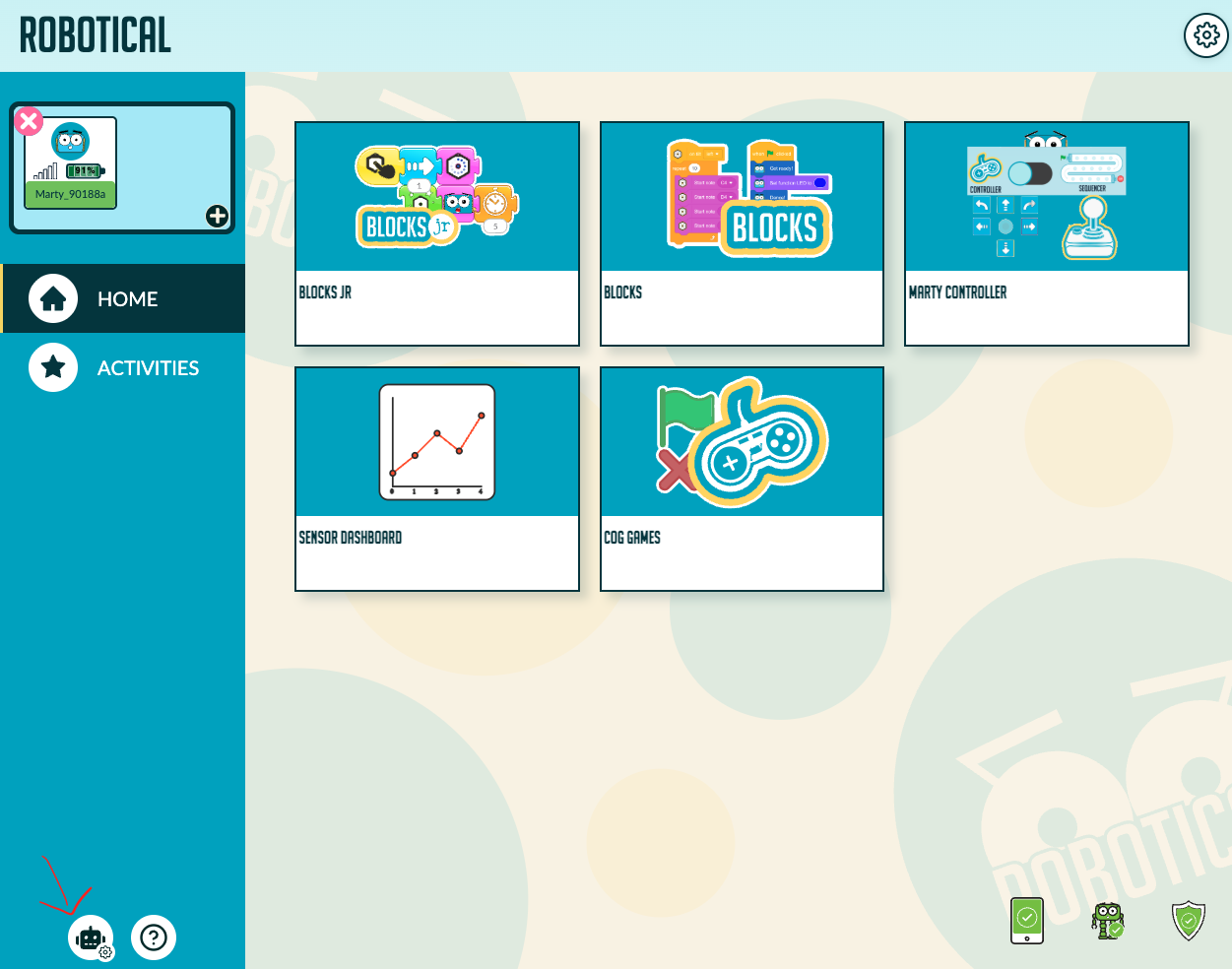
- Select the Robot settings icon: the robot with a small gear at the bottom-left of the desktop layout. The top-right gear opens App settings instead. If several robots are connected, choose the Marty whose address you need.
On the Robot settings screen, look at the Wi-Fi row near the top. Its status line shows the IP address and network name when they are available.
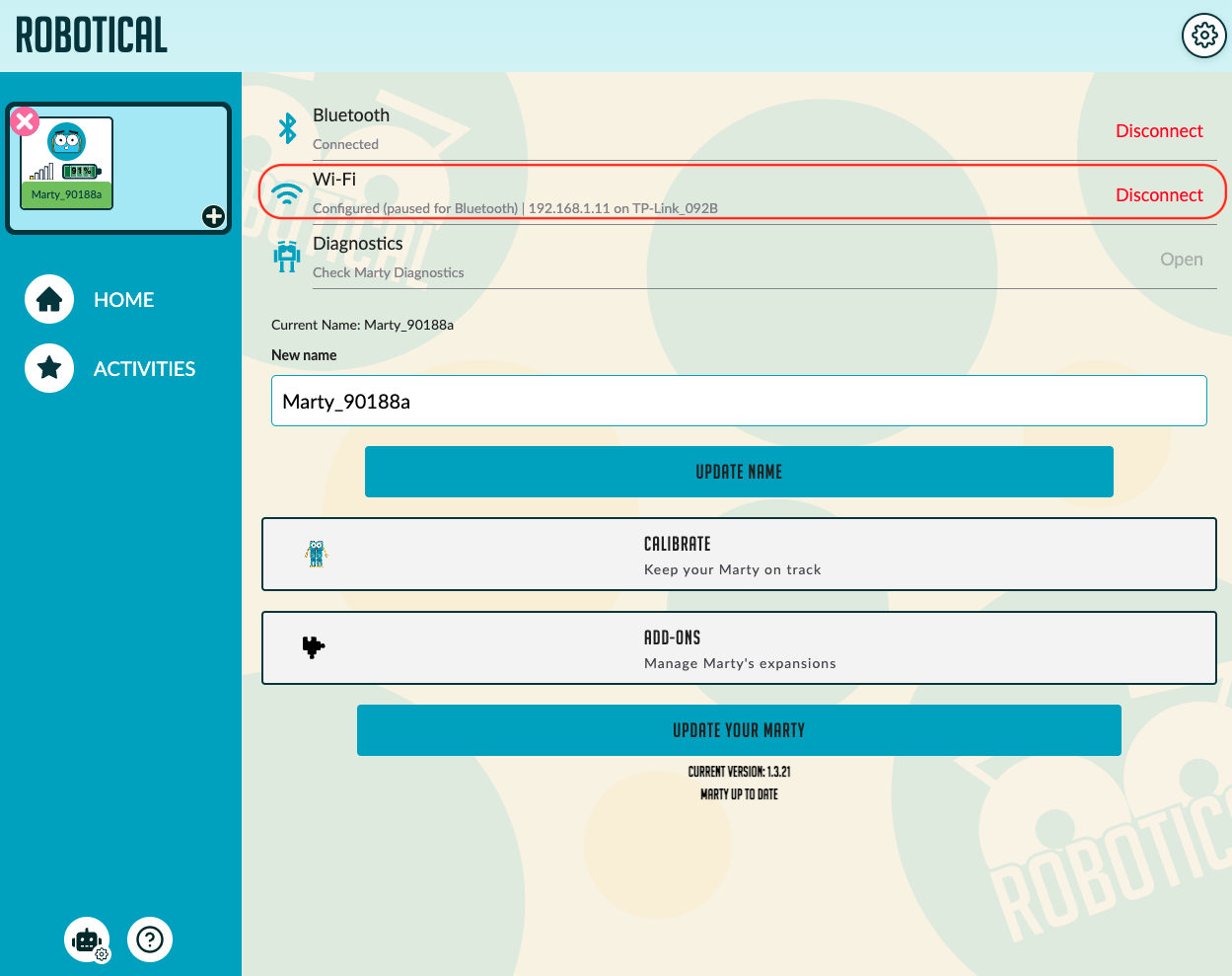
In this screenshot, the address is 192.168.1.11. This is an example: use the address shown for your Marty. Copy only the numeric address, not the status message or the network name after it.
What does “paused for Bluetooth” mean?
Configured (paused for Bluetooth) means that Marty has Wi-Fi settings saved, but Wi-Fi is paused while the Bluetooth connection is in use. The displayed address is useful to note down, but this status does not mean Marty is currently reachable over Wi-Fi.
Before connecting from Python over Wi-Fi:
- Note the IP address.
- Disconnect Marty's Bluetooth connection using Disconnect in the Bluetooth row at the top of Robot settings, or the disconnect control for Marty in the connection panel. Confirm the app's disconnect prompt.
- Allow Marty to reconnect to its Wi-Fi network, then connect from a computer on the same local network.
Do not use Disconnect in the Wi-Fi row just to end the Bluetooth session. That control clears Marty's saved Wi-Fi settings, so you would need to configure the network again.
An IP address can change when Marty reconnects or the network assigns a new address. If a connection fails, check the address again. For a first Python connection, follow First Steps with Python.
If no address is shown
- Not connected / Configured (not connected): check that the configured Wi-Fi network is available and that Marty can join it. A saved network name alone is not an IP address.
- Firmware update required: follow Updating Marty, then check Robot settings again.
- Address shown but connection fails: disconnect any remaining Bluetooth sessions, confirm the address, and check that your computer can reach Marty on the local network. Guest or school networks may isolate devices.